
How to Create a robots.txt File — Understand It in 5 Minutes
 임재복
임재복
Why does a robots.txt file matter, and why do you actually need one?
If you run a website, you’ve probably wondered how to make sure your important pages get found by search engines while unnecessary pages stay out of view.
That’s exactly the role this file plays. It tells search engine crawlers, “you can look at this page, but skip that one.”
Used well, it can optimize your SEO performance and prevent unnecessary crawling. Set it up wrong, though, and you can accidentally make important pages disappear from search entirely.
In this article, we’ll walk through everything from the basic concept to actual configuration in a way that’s easy for B2B marketers to follow, even without an SEO background.
By the end, you’ll be able to manage your site’s search exposure effectively, even if you’re not an SEO specialist.
What Is robots.txt, and Why Does It Matter?
Many marketers focus on content and keyword strategy for SEO, but understanding how search engines crawl your site matters just as much.
Search engine crawlers automatically visit and index every page on a website, and robots.txt is what controls which pages they can and can’t crawl in that process. Google’s official documentation defines robots.txt as “a file that tells search engine crawlers which URLs the crawler can access on your site,” mainly used to avoid overwhelming your site with requests.
It lives in your website’s root directory and tells search engines which paths to allow or block.
Set up correctly, it prevents unnecessary crawling and lets you concentrate crawl budget on your important pages. Set up incorrectly, it can cause the serious problem of your key pages being excluded from search entirely.
According to Google Search Central, the rules themselves are simple, but a configuration mistake can directly hurt your SEO.
That’s why understanding how to set it up correctly matters so much.
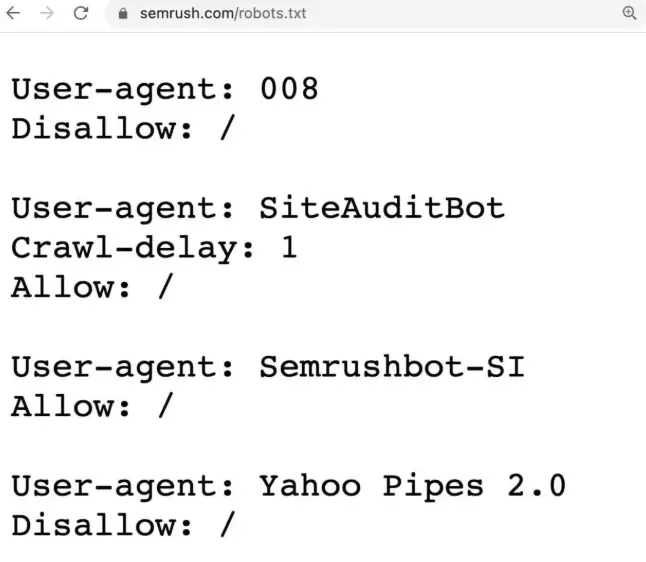
The Basic Syntax and Structure of robots.txt
At its core, the file is just a simple set of instructions for talking to search engine crawlers.
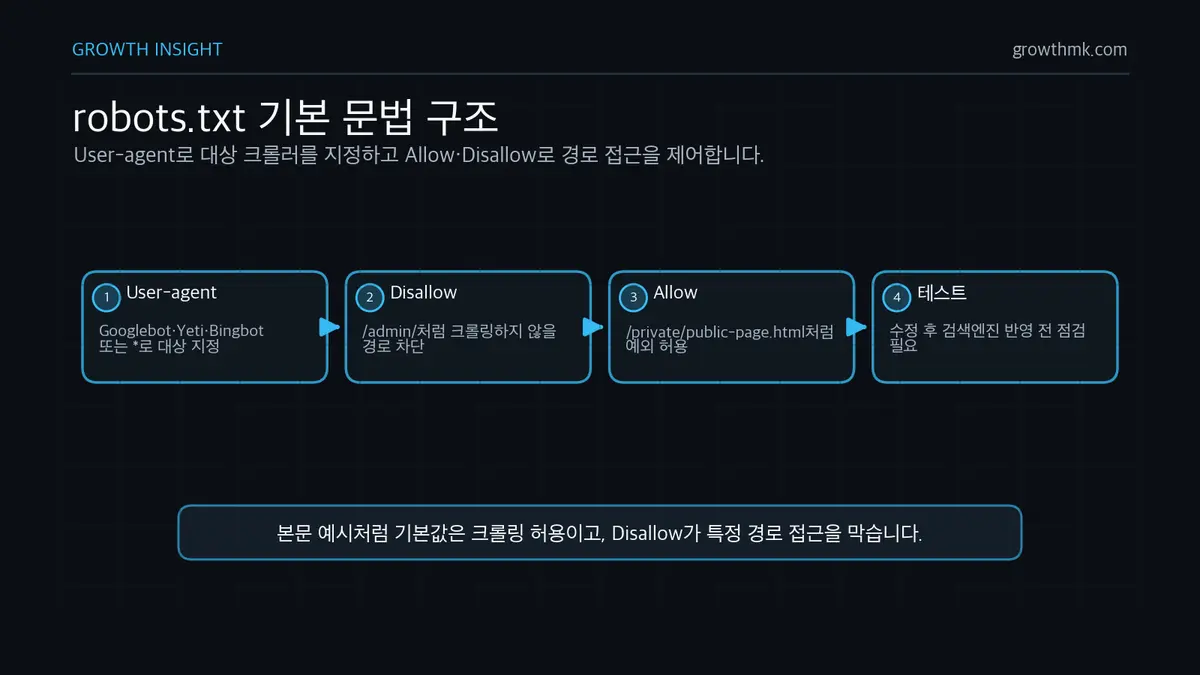
Each line pairs a specific search engine crawler (User-agent) with the rules (Disallow, Allow, etc.) that apply to it.
Understanding User-agent
Search engine crawlers are responsible for collecting and indexing your website’s content.
But not every search engine follows the exact same crawling rules, so you sometimes need to set rules that target a specific crawler.
That’s where the User-agent directive comes in. User-agent specifies which crawler a given rule applies to.
For example, Google’s crawler is named “Googlebot,” Naver’s is “Yeti,” and Bing’s is “Bingbot.”
To target one specific crawler, specify its User-agent. To apply a rule to every crawler, use the ‘*’ symbol.
User-agent: *
This setting means the same rule applies to every search engine crawler.
The Difference Between Allow and Disallow
The core function of robots.txt is telling search engine crawlers whether to crawl a specific path or not.
That’s what the Allow and Disallow directives are for.
These two settings are really the heart of the file.
Allow is the directive that permits crawling of a specific page or folder, and Disallow is the directive that blocks it.
By default, search engine crawlers try to crawl every page, but Disallow lets you block access to a specific path.
For example, an ‘/admin’ directory is an admin page that doesn’t need to be exposed to search engines.
So to block every search engine crawler from crawling the ‘/admin’ directory, you’d set it up like this:
User-agent: *
Disallow: /admin/
On the other hand, if you want to block a folder overall but still allow crawling of one specific page inside it, you can use the Allow directive.
User-agent: *
Disallow: /private/
Allow: /private/public-page.html
This setup blocks every page in the ‘/private/’ directory except ‘/private/public-page.html’, which remains accessible to search engines. This approach is useful when you want to expose only specific content from a directory that otherwise holds private material.
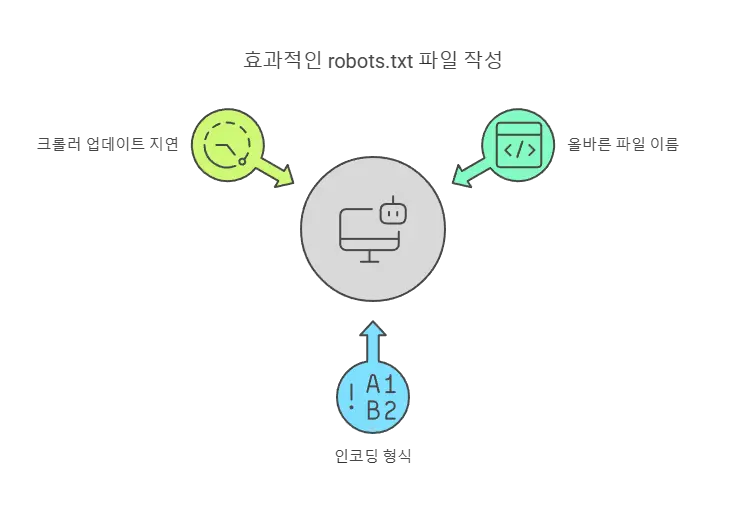
Writing robots.txt: Practical Application
Things to Watch When Writing the File
Write it as a simple text file, then upload it to your site’s root directory.
If there’s no robots.txt file at all, search engine crawlers are free to crawl every page.
Here’s what to keep in mind when writing the file (based on Google’s official robots.txt guide):
- The file name must be exactly “robots.txt”.
- Save it in UTF-8 or ASCII format.
- Search engines don’t pick up robots.txt changes in real time, so test after every edit.
SEO Optimization Strategies Using robots.txt
Optimizing Crawl Budget
Search engine crawling consumes server resources. Blocking unnecessary pages is an effective way to concentrate crawl budget on the pages that matter.
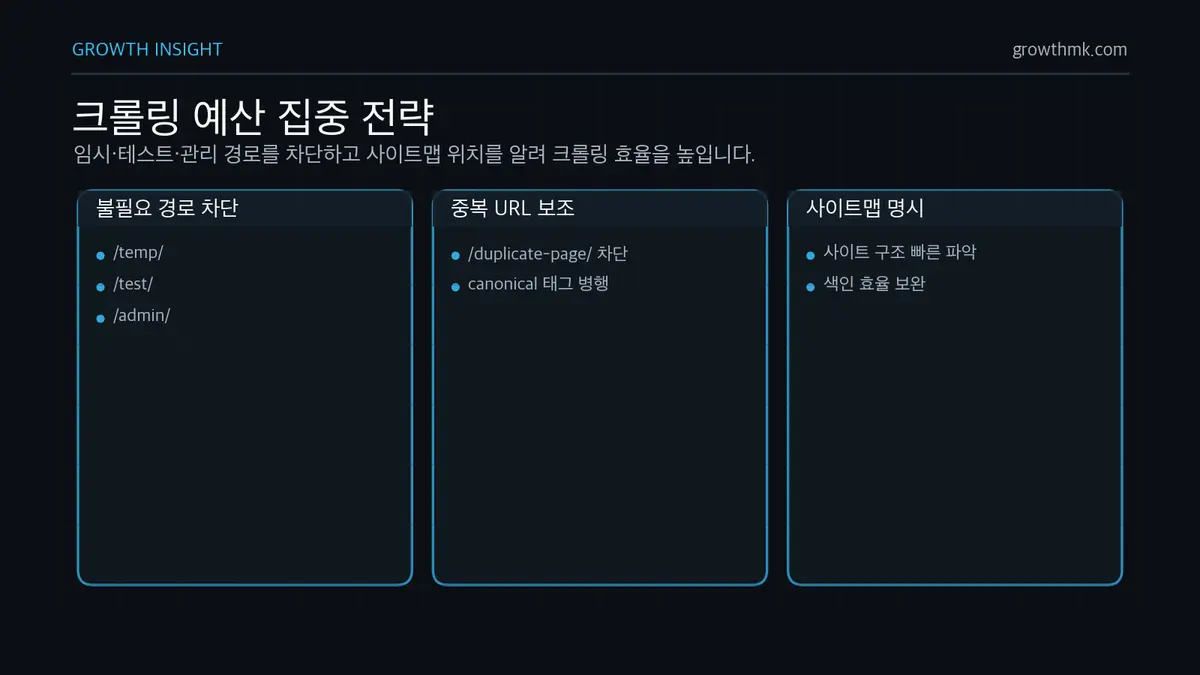
User-agent: *
Disallow: /temp/
Disallow: /test/
Disallow: /admin/
Blocking temp folders or admin pages like this keeps search engines from wasting crawls on pages that don’t matter.
Preventing Duplicate Content Issues
When the same content is available at multiple URLs on your site, search engines may flag it as duplicate content.
You can use robots.txt to block crawling of specific pages to help prevent this.
User-agent: *
Disallow: /duplicate-page/
That alone won’t fully solve the problem, though, so it’s best paired with a canonical tag.
Pairing It With a Sitemap to Improve Search Performance
Specifying your sitemap’s location in the file helps search engines understand your site structure faster.
Sitemap: https://www.example.com/sitemap.xmlWith this in place, search engines can reference your sitemap and index your site more effectively.
Things to Watch Out for When Configuring robots.txt
robots.txt vs. Noindex: What’s the Difference?
robots.txt only blocks search engines from crawling a page — it doesn’t necessarily make that page disappear from search results entirely.
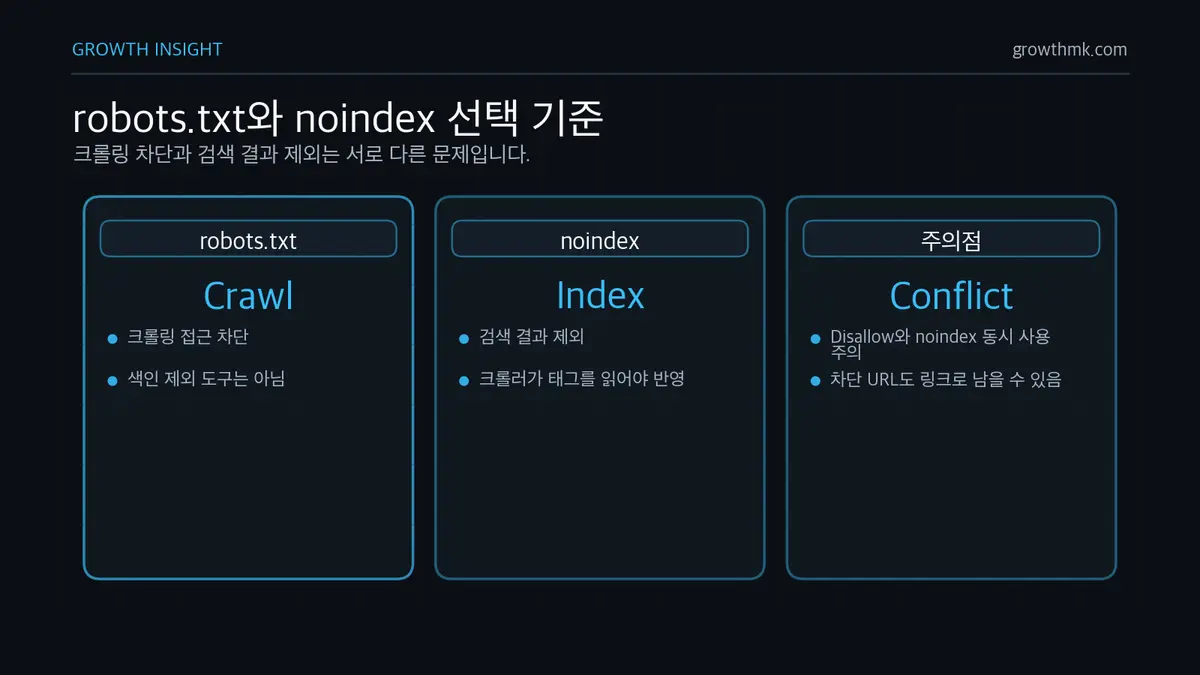
Even if a search engine stops crawling a page, an already-indexed version can still remain in the results. Google explicitly states that robots.txt “is not a mechanism for keeping a web page out of search results,” and notes that a blocked URL can still get indexed if other sites link to it.
In that situation, you need to pair it with a Noindex meta tag to instruct search engines not to index that page.
With a Noindex tag applied, even if a search engine visits the page, it will exclude it from the index so it won’t show up in search results.
One important catch: if you block crawling with robots.txt while also setting a Noindex tag, the crawler may never revisit the page to read that tag, so the Noindex instruction might not take effect.
The most effective approach is to allow the page to be crawled while applying the Noindex tag.
<meta name=”robots” content=”noindex”>
This setting is even more effective when combined with Disallow.
SEO Problems That Can Result From a Misconfigured robots.txt
The Mistake of Blocking Your Entire Site From Search
User-agent: *
Disallow: /
This setting blocks search engine crawlers from accessing every page on your site. In other words, search engines can visit your site but won’t be able to crawl a single page.
This can be useful for keeping a site private during development, but if it’s accidentally applied to a live site, it risks blocking all of your search exposure.
That’s why you should always test any robots.txt change in Google Search Console to avoid unexpected problems.
If you want to block specific pages while keeping other important pages available for search, a setup like this is more appropriate:
User-agent: *
Disallow: /admin/
Disallow: /private/
Note that a broad rule like the “Disallow: /” example above blocks every search engine from crawling your site, so it removes all of your search exposure — use it only when that’s exactly what you want.
Important Pages Failing to Get Indexed
Regularly check whether pages that matter for search traffic are getting blocked by your robots.txt configuration.
If a specific page has disappeared from search results, check the file’s settings first, then verify search engines are actually able to crawl the page.
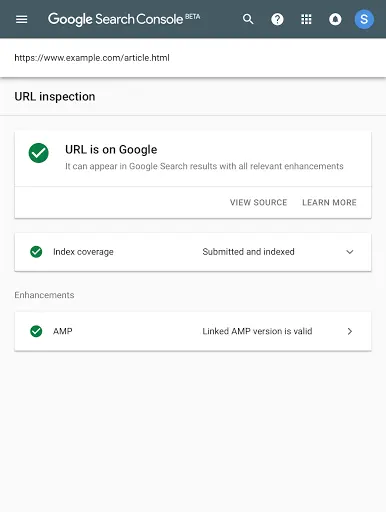
Google Search Console’s URL Inspection tool is the way to check this.
It lets you check whether a search engine can crawl a specific page and whether it’s indexed, and if there’s an issue, you can fix it and submit an indexing request.
Google Search Console’s Coverage report also gives you an at-a-glance view of which pages are crawled and indexed and which ones are blocked.
Checking this report regularly helps you catch unexpected indexing gaps early and respond quickly.
Related Reading
- The Complete Guide to Technical SEO: Crawling, Indexing, Rendering, Speed, and Structure
- What Is a Canonical Tag?
- Why a Sitemap Matters and 3 Ways to Create One
- How to Fix Open Graph Tag Errors
- What Is an H1 Tag and How to Use It Correctly
If you’d like to apply this to your own business — you can see how Growth approaches it in our SEO service, and if you need a specific diagnosis of your situation, reach out through contact us. We answer based on the one customer who becomes revenue, not the volume of traffic.
Frequently Asked Questions
If I block a page with robots.txt, does it disappear from search results completely?
No. robots.txt only blocks crawling — it isn’t a tool for controlling indexing itself. Google’s own documentation states that robots.txt “is not a mechanism for keeping a web page out of search results.” If other sites link to it, a blocked URL can still remain in search results, showing just its address. If your goal is to keep a page out of search entirely, use noindex instead.
Should I use robots.txt or noindex?
They serve different purposes. Use robots.txt’s Disallow to reduce server load or block crawling of a specific path; use the noindex meta tag if you want to keep a page out of search results. One important caveat: on a page blocked by robots.txt, crawlers may never “read” the noindex tag, so that instruction can end up not taking effect. If your goal is search exclusion, it’s more effective to allow crawling and apply noindex.
Where should I put the robots.txt file, and in what format should I save it?
Per Google’s official guide, the file must be named exactly robots.txt, must sit in your site host’s root directory, and must be a UTF-8 (including ASCII) encoded text file. Crawlers won’t recognize it if it’s placed in a subdirectory instead of the root. Changes aren’t reflected in real time, so test after every edit.
My whole site accidentally disappeared from search. What should I check?
The most common cause is a Disallow: / rule that got applied to a live site. This blocks crawling of every page, which can wipe out your search exposure. Check your robots.txt configuration first, then use Google Search Console’s URL Inspection tool to verify whether the affected pages can be crawled and indexed. The Coverage report gives you an at-a-glance view of which pages are blocked.