How to Fix Open Graph Tag Errors
 임재복
임재복
Open Graph tags are a core element of modern digital marketing and web content optimization. Did you know how much these small snippets of code matter? These tags, which determine how your content appears on social media, actually have a huge effect on click-through rate and engagement.
You’ve probably shared a link on Facebook or a messaging app and seen a broken image or a completely wrong title show up. When your tags are set up correctly, on the other hand, your content displays accurately on Facebook, Twitter/X, and other platforms.
Plenty of fellow marketers have struggled with exactly this problem too. A social preview showing up looking like a mess right before an important campaign launch is embarrassing just to think about.
But don’t worry. By the end of this article, you’ll be able to fix Open Graph tag errors in no time. Let’s walk through the most common errors and how to fix them, one by one.
What Is an Open Graph Tag?
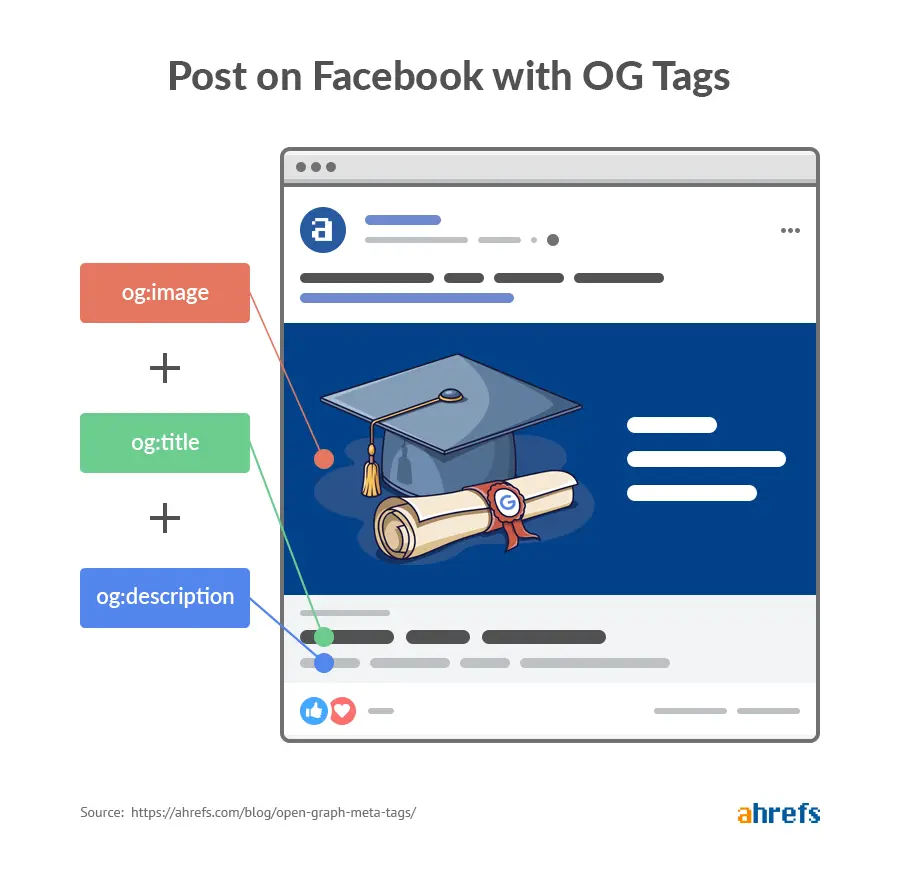
An Open Graph tag is a meta tag that determines how a webpage displays when it’s shared on social media. Facebook originally developed it, but it’s now used across most social platforms, including Twitter/X, LinkedIn, and messaging apps.
Simply put, it’s the code that sets the “preview” information — title, description, image — that shows up when you share a blog or website link on Facebook or a messaging app.
A basic Open Graph tag is written in the HTML <head> section like this:
<meta property="og:title" content="Page title" />
<meta property="og:type" content="website" />
<meta property="og:url" content="https://www.example.com/page" />
<meta property="og:image" content="https://www.example.com/image.jpg" />
<meta property="og:description" content="Page description" />
Now let’s walk through the most common Open Graph tag errors and how to fix them!
Error 1: Missing Required OG Tags
The Problem
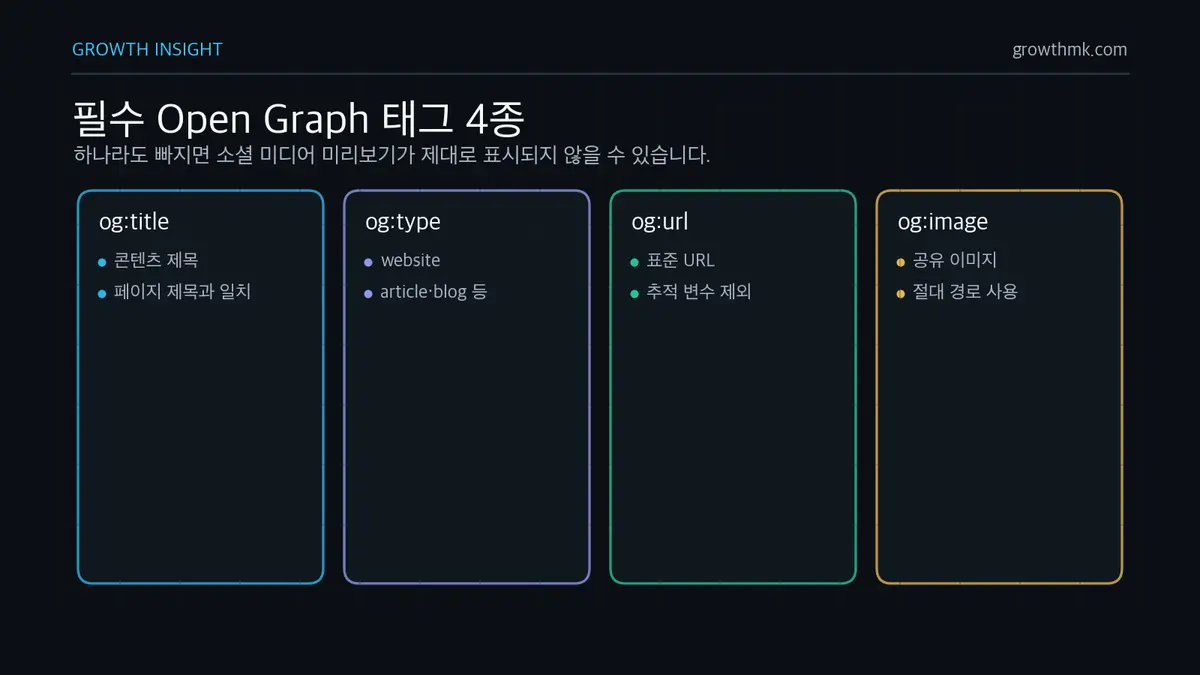
The most basic error is missing a required OG tag. The required tags are og:title, og:type, og:url, and og:image — and if even one of these is missing, your content may not display properly on social media. This matches exactly the four required properties that the official Open Graph protocol specification (ogp.me) requires for every page.
How to Fix It
- Check your website’s HTML source code.
- Confirm all of the following required tags exist inside the
<head>tag.
<meta property="og:title" content="Content title" />
<meta property="og:type" content="website" /> <!-- or article, blog, etc. -->
<meta property="og:url" content="https://your-website.com/page" />
<meta property="og:image" content="https://your-website.com/image.jpg" />- Add any missing tags.
- If you’re on WordPress, a plugin like Yoast SEO or All in One SEO Pack makes this easy to manage.
Error 2: Image-Related Problems
The Problem
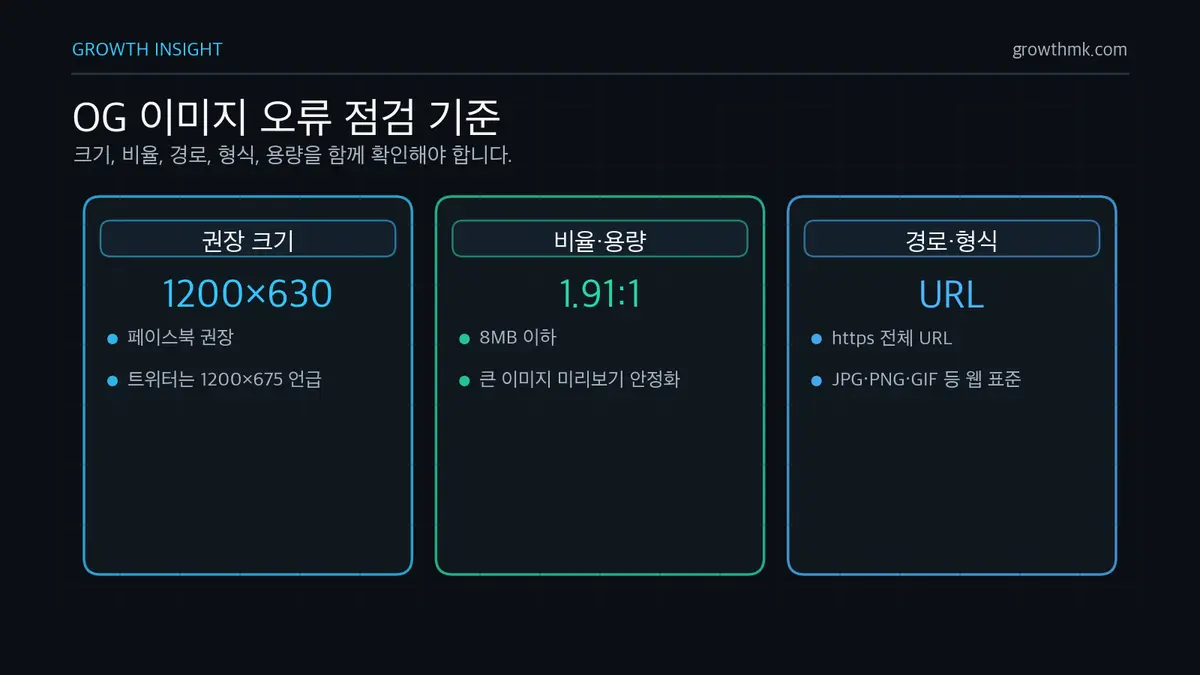
If your image is too small, has the wrong aspect ratio, or has an incorrect URL, your image won’t display properly on social media.
How to Fix It
- Check the image size: Facebook recommends at least 1200 x 630 pixels, and Twitter/X recommends 1200 x 675 pixels. Meta’s (Facebook’s) own documentation also recommends at least 1200 x 630 pixels, a 1.91:1 ratio, and a file size under 8MB.
- Check the image URL: Use an absolute path (a full URL starting with https://).
- Check the image format: Use a standard web format like JPG, PNG, or GIF.
- Check the file size: Keep it under 8MB.
<!-- Good example -->
<meta property="og:image" content="https://your-website.com/images/og-image.jpg" />
<meta property="og:image:width" content="1200" />
<meta property="og:image:height" content="630" />

<!-- Bad example -->
<meta property="og:image" content="/images/og-image.jpg" /> <!-- uses a relative path -->
Error 3: Duplicate OG Tags
The Problem
When there are multiple OG tags of the same type, a social media platform gets confused about which piece of information to use. This especially tends to happen on WordPress when you’re running multiple SEO plugins at once.
How to Fix It
- Inspect your website’s source code to check for duplicate OG tags.
- Check whether your theme and plugins are both generating OG tags, creating duplicates.
- If you’re on WordPress, only run a single SEO-related plugin.
- If you can edit the code directly, remove the duplicates and leave just one.
Error 4: Content Mismatch
The Problem
This happens when your OG tag content doesn’t match the actual webpage content. Users end up seeing something different from what they expected, which can undermine trust.
How to Fix It
- Check whether your OG tag content matches your webpage content.
- Confirm especially that og:title and og:description accurately reflect the page’s actual title and content.
- If you’re using an automated tool, verify it’s correctly pulling tag content from the actual content.
<!-- An OG title that matches the webpage title -->
<title>2025 Digital Marketing Trends</title>
<meta property="og:title" content="2025 Digital Marketing Trends" />
Error 5: Character Encoding Issues
The Problem
This happens when an OG tag containing non-Latin characters or special characters displays as garbled text. It’s an especially common problem on non-English websites.
How to Fix It
- Check that your HTML document has the correct encoding set.
<meta charset="UTF-8">- If your OG tag’s content value includes special characters or non-Latin text, convert it to HTML entities or verify that UTF-8 encoding is actually being applied correctly.
- Check that your server configuration has the Content-Type header set correctly.
Error 6: URL Errors
The Problem
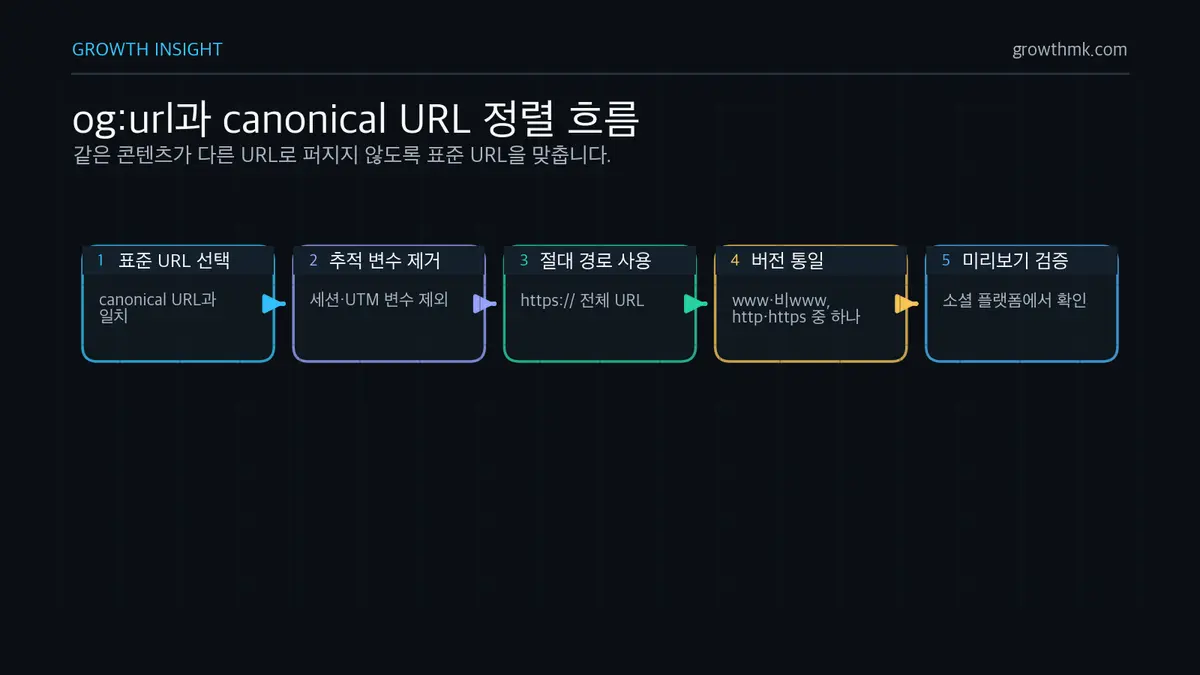
If the og:url tag is incorrect or missing, social media platforms may treat the same piece of content as living at different URLs, creating a duplicate content problem.
How to Fix It
Check whether your og:url tag matches the current page’s canonical URL. Meta’s own guide states that og:url should contain the page’s canonical URL, with no session variables or tracking parameters.
<link rel="canonical" href="https://your-website.com/page" />
<meta property="og:url" content="https://your-website.com/page" />- Always write your URL as an absolute path.
- Pick one and be consistent: www vs. non-www, and http vs. https.
Error 7: Platform-Specific Errors
The Problem
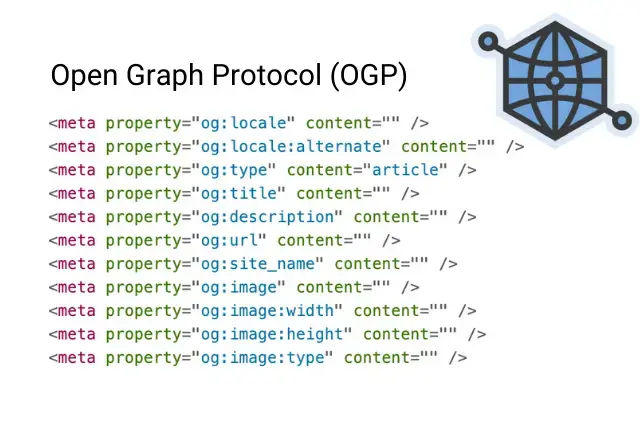
Each social media platform also supports its own meta tags beyond OG tags. Twitter/X, for instance, uses Twitter Card tags. If these platform-specific tags are missing, your content may not display correctly on that particular platform.
How to Fix It
For Twitter/X, add Twitter Card tags.
<meta name="twitter:card" content="summary_large_image" />
<meta name="twitter:site" content="@your_twitter_handle" />
<meta name="twitter:title" content="Content title" />
<meta name="twitter:description" content="Content description" />
<meta name="twitter:image" content="https://your-website.com/image.jpg" />
For messaging apps like KakaoTalk, plain OG tags already work well, but adding these tags helps even more.
<meta property="og:locale" content="en_US" />
<meta property="og:site_name" content="Site name" />
For anything beyond that, check each platform’s developer documentation and add whichever tags you need.
Error 8: OG Tags Not Reflecting Content Updates
The Problem
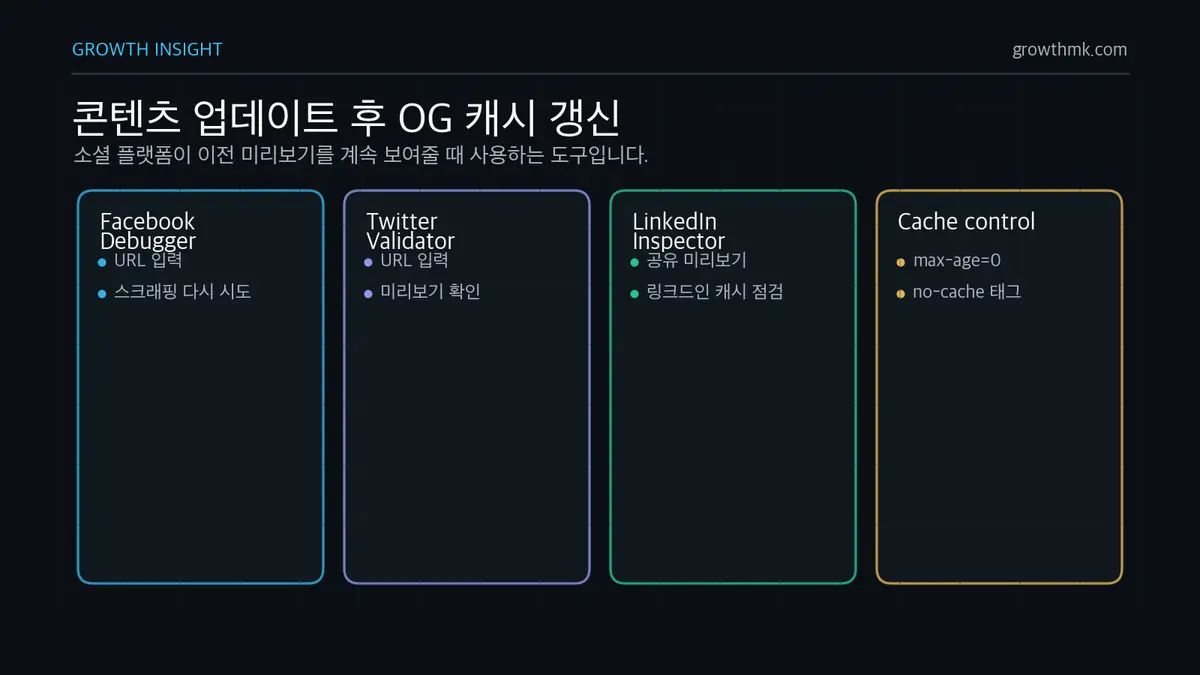
This happens when you’ve updated your webpage content, but social media still shows the old information. It’s because social platforms cache the information from a previous crawl.
How to Fix It
- Force-refresh the cache using Facebook’s debugger tool:
- Go to the Facebook Sharing Debugger
- Enter your URL and click “Debug”
- Click “Scrape Again”
- Use the Twitter Card validator:
- Go to the Twitter Card Validator
- Enter your URL and click “Preview”
- For LinkedIn, use Post Inspector.
- Add cache-control tags to reduce cache duration.
<meta http-equiv="cache-control" content="max-age=0" />
<meta http-equiv="cache-control" content="no-cache" />
Open Graph Tag Management Tools
Here are some tools that make it easy to check and manage your Open Graph tags.
- Sharing Debugger – Meta for Developers: Analyzes your OG tags and provides a preview.
- Twitter Card Validator: Checks your Twitter Card tags.
- LinkedIn Post Inspector: Checks your share preview on LinkedIn.
- The Yoast SEO plugin: Makes it easy to manage OG tags on WordPress.
- SEO Meta in 1 Click: A Chrome extension that lets you quickly check every meta tag on a webpage.
Wrapping Up
Open Graph tags are a critical element that determines how your content displays on social media. It’s worth periodically checking and updating your OG tags. Before publishing anything important in particular, always double-check that your OG tags are set up correctly.
We hope this article helped you fix your Open Graph tag errors. Use the errors and fixes covered here as a reference to make your website or blog look great when it’s shared on social media!
Struggling with search engine optimization? Check out these articles too.
Related Reading
- The Complete Guide to Technical SEO: Crawling, Indexing, Rendering, Speed, and Structure
- What Is a Canonical Tag?
- Why a Sitemap Matters and 3 Ways to Create One
- What Is an H1 Tag and How to Use It Correctly
- What Are SSL Certificates and HTTPS, and Why Do They Matter?
If you’d like to apply this to your own business — you can see how Growth approaches it in our SEO service, and if you need a specific diagnosis of your situation, reach out through contact us. We answer based on the one customer who becomes revenue, not the volume of traffic.
Frequently Asked Questions
What are the required Open Graph tags I absolutely need?
According to the official Open Graph protocol specification, og:title, og:type, og:url, and og:image are the four required properties for every page. If even one is missing, your social preview can break or fail to display correctly, so check first that all four exist inside your <head>.
What size should my OG image be?
Facebook (Meta) recommends at least 1200 x 630 pixels, a 1.91:1 ratio, and a file size under 8MB. The image URL must be an absolute path starting with https — a relative path can cause your image to fail to display on social media.
I updated my content, but social media is still showing the old preview. What do I do?
That’s because the social platform is caching the old information. On Facebook, you can force a refresh using “Scrape Again” in the Sharing Debugger; on LinkedIn, use Post Inspector. Since images are cached by URL, if you changed the image, it’s a good idea to also change the filename (URL) to be sure it refreshes.
What URL should I put in og:url?
Use the page’s canonical URL. Use an absolute path with no session variables or tracking parameters attached, and stay consistent — pick either www or non-www, and either http or https. If og:url is set incorrectly, social platforms may treat the same content as living at different URLs, creating a duplicate content problem.