
A Walkthrough of Initial Google Analytics 4 Setup
 임재복
임재복

Google Analytics 4 (GA4) is the latest version of Google Analytics, designed to let businesses of any size measure website and app performance across multiple platforms.
For a B2B marketing organization, GA4 offers valuable insight into how customers interact with your website and what you can do to improve their experience.
This article walks B2B marketers through the initial setup process for Google Analytics 4 and what to watch out for.
How to Set Up Google Analytics 4 on Your Website
To install Google Analytics 4 on your website for the first time, you need to create a GA4 property and data stream. Once that’s done, you can install the GA4 tracking code on your website using one of the methods below.
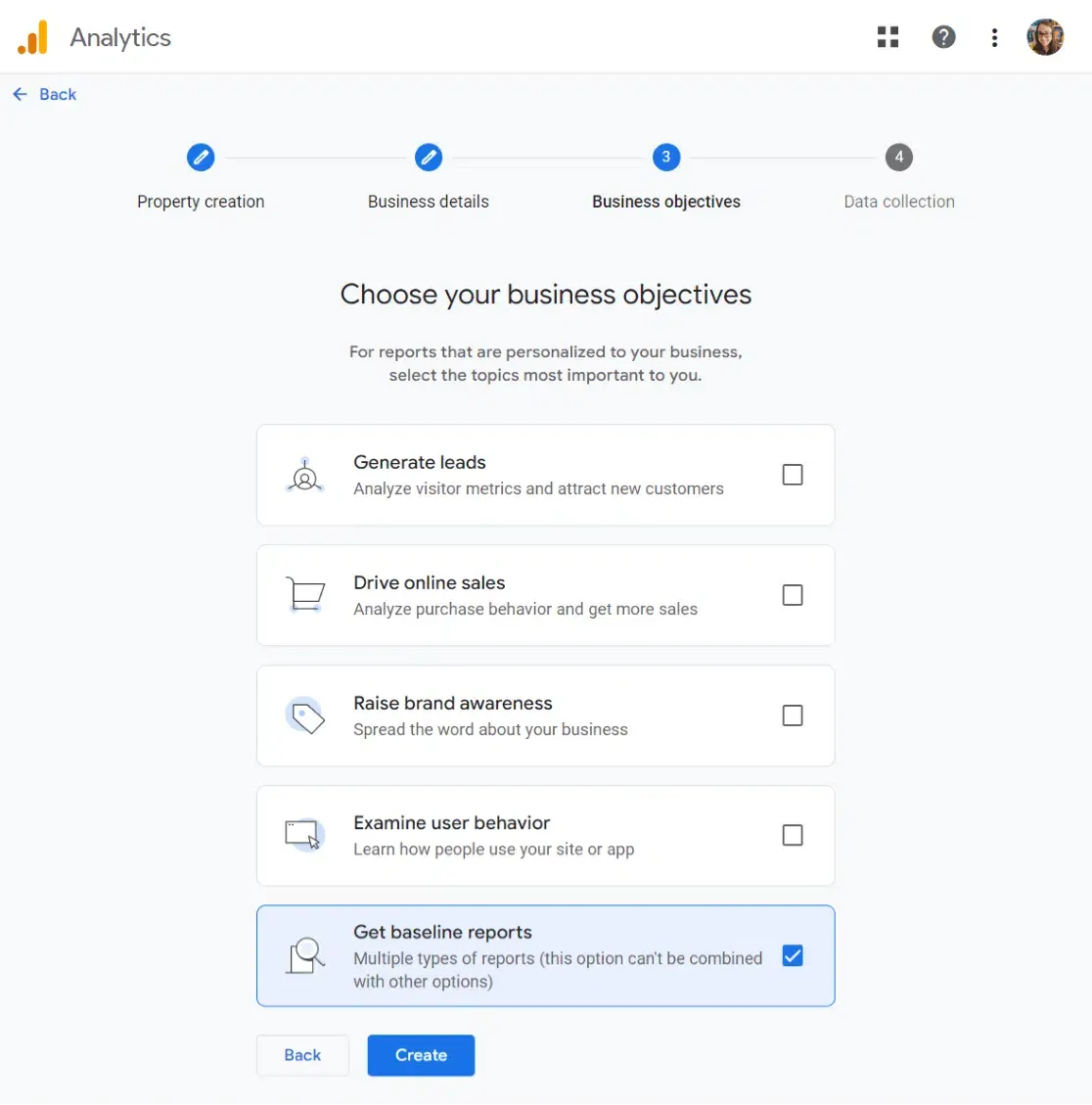
If you don’t have a Google Analytics account yet, you can get started with a quick sign-up process. It’s a good idea to opt into basic report importing at this stage, so every GA4 report gets populated.
Use a Plugin or CMS Integration
Many popular website builders and content management systems (CMS) offer a plugin or integration that makes it easy to install GA4 on your site.
If you’re on WordPress, for example, you can install the Google Site Kit plugin and connect GA4 in just a few clicks.
The Google Analytics 4 Setup Assistant
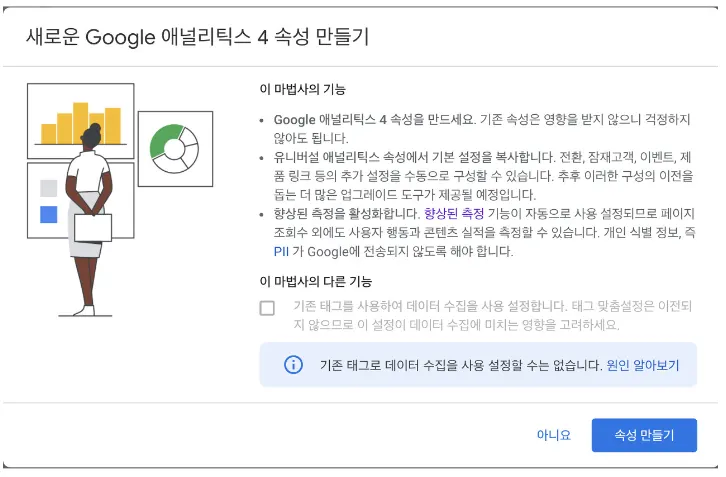
The GA4 Setup Assistant is a simple tool that helps you get GA4 up and running in minutes. Under Properties, click “Create Property,” then select Google Analytics 4 property.
Use Google Tag Manager (GTM)
Google Tag Manager is a free tag management system that lets you manage every tag on your website, including GA4, in one place. Google’s own documentation notes that Tag Manager lets you set up and manage tags without editing your website’s code directly, and that a single container can replace existing tags for Google Ads, Google Analytics, and more.
If you’re already using Google Tag Manager, all you need to do is add a GA4 tag to your existing container.
Manually Install the GA4 Tracking Code
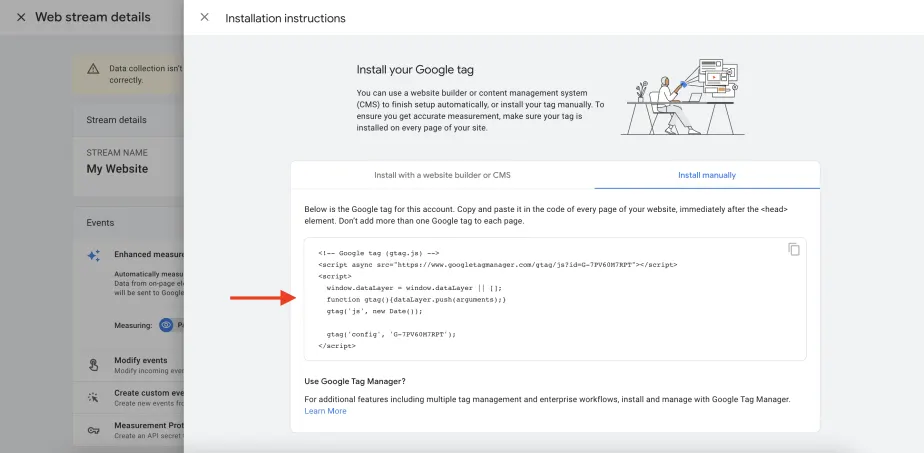
If you’re not using a plugin, CMS integration, or Google Tag Manager, you can install the GA4 tracking code manually. To do this, copy the tracking code and paste it into the <head> section of every page on your website.
Tips for Initial GA4 Setup
- If you were previously using Universal Analytics, you can create a new GA4 property and migrate your existing data.
- You can also create separate GA4 properties for your website and app, then link them for cross-platform reporting.
- If you’re using a website builder or CMS that doesn’t yet support GA4, you can install the tracking code manually.
- Always test your GA4 installation after making any changes to your website. You can use the Realtime report to confirm data is coming through.
- Once GA4 is installed on your website, you can use it to track website traffic and performance. GA4 offers a variety of reports and features that help you understand how customers interact with your website and what you can do to improve their experience.
How to Set Up the GA4 Basics
Your GA4 setup is now complete. After installing the GA4 tracking code on your website, it can take a few hours before data starts appearing in your GA4 reports. From there, you can use GA4 to track your website’s traffic and performance.
Now let’s cover the basic settings you should configure to get better data analysis.
Enable Google Signals Data
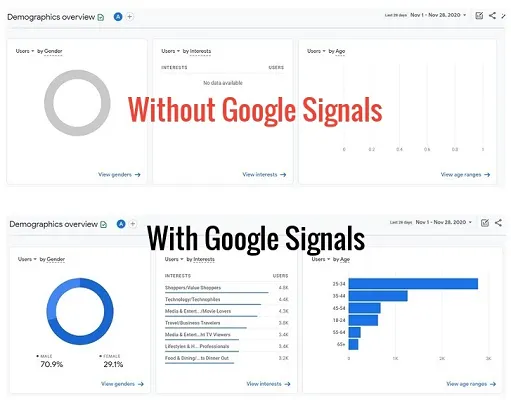
Unlike Universal Analytics, Google Analytics 4 uses a concept called “Google signals data” instead of relying on cookies.
Google signals is a GA4 feature that lets you collect data on users who are signed into their Google Account and have ad personalization turned on. According to Google’s own explanation, Google signals is session data from users who meet both conditions — signed in and ad personalization enabled — and it powers cross-device remarketing, ad performance reporting, and demographic and interest data.
Google signals data plays an important role in GA4 because it lets you build a more complete picture of user behavior across multiple devices. You can use this information to improve website performance, marketing campaigns, and the customer experience.
For example, Google signals data lets you see how users interact with your website across desktop computers, smartphones, and tablets. This information helps you understand how users move through your sales funnel and where they drop off.
You can also retarget users who visited your website from a different device. This can be useful for building brand awareness and driving conversion.
Finally, you can export cross-device conversion data to Google Ads. This information can help improve your bidding strategy and campaign performance.
To use Google signals data in Google Analytics 4, do the following:
- Go to Admin > Data Streams.
- Click the edit button next to the data stream where you want to enable Google signals.
- Under Enhanced Measurement, toggle on the switch next to Google signals.
- Click Save.
Keep in mind that Google signals data is only available for users who are signed into their Google Account and have ad personalization enabled.
Google signals data also has a data threshold applied. That means if your website has too few users, some data may not appear in your GA4 reports.
Set Your Data Retention Period
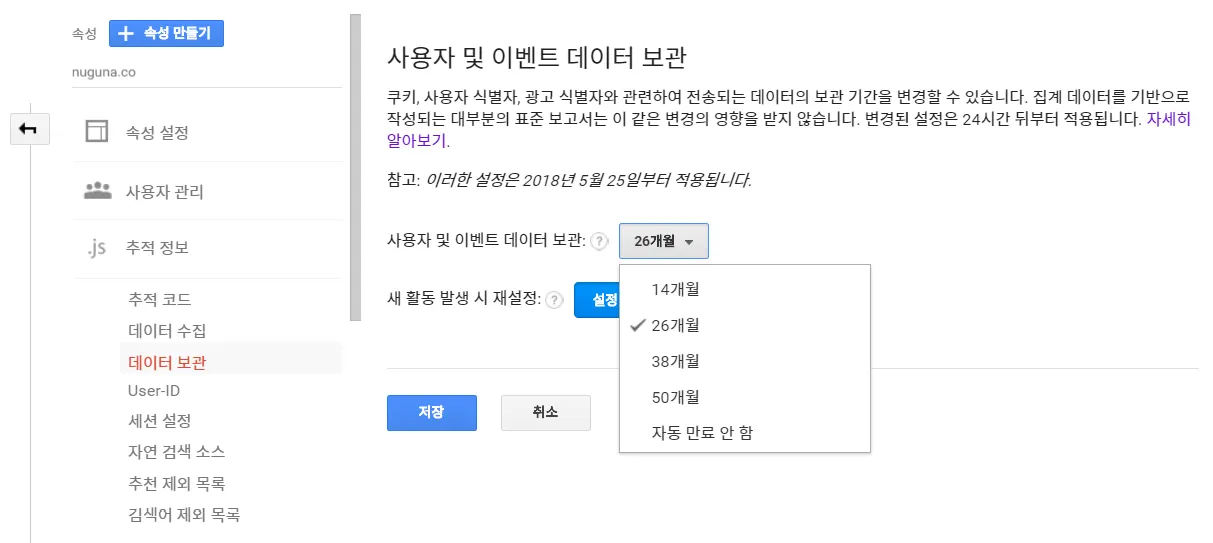
When you first create a Google Analytics 4 property, the data retention period is automatically set to 2 months. According to Google’s own documentation, standard properties can choose an event data retention window of either 2 or 14 months, so we recommend switching to 14 months for longer-term analysis.
To change it, go to Admin > Property > Data Settings > Data Retention > Event Data Retention, select 14 months, and save.
Set Up Cross-Domain Tracking
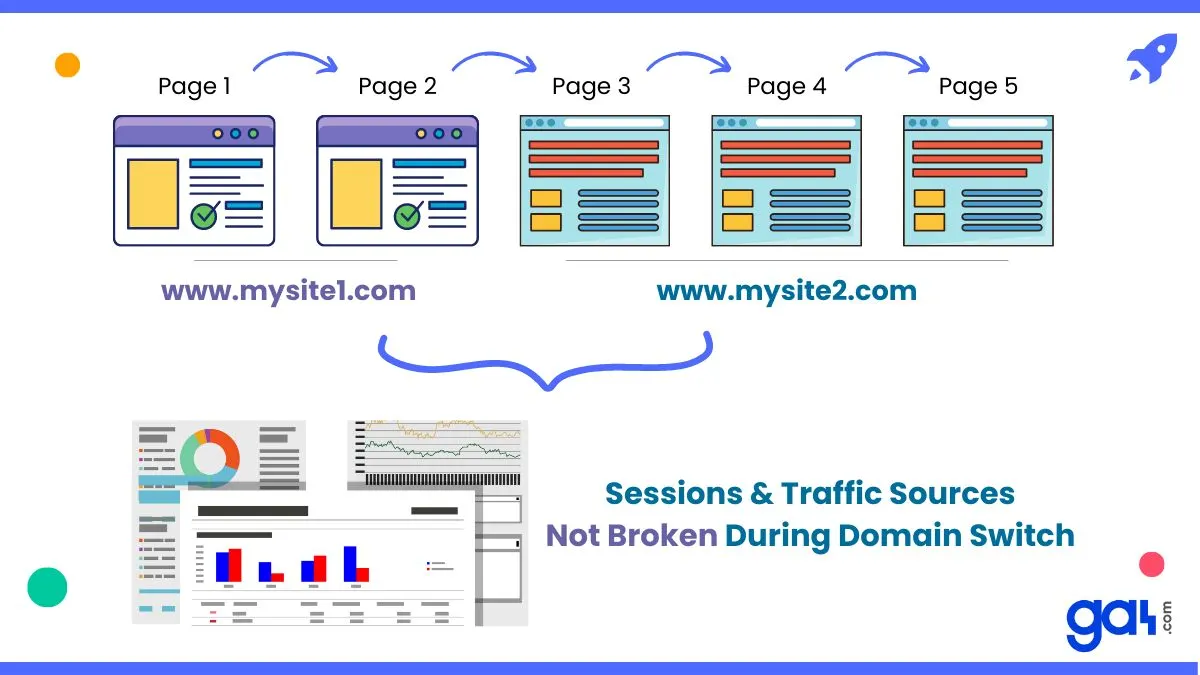
Cross-domain settings in Google Analytics 4 let you track users who interact with your website across multiple domains. This feature is useful for businesses running multiple websites, or businesses that rely on a third-party domain for a specific feature or function.
Here’s how to set it up:
- Go to Admin > Data Streams
- Click the edit button next to the data stream where you want to enable cross-domain tracking
- Under Configure domains, click “Add condition”
- Select the match type to use for cross-domain tracking
- Enter the domain you want to include in cross-domain tracking in the domain field
- Click Add
- Repeat steps 3–6 for each domain you want to include in cross-domain tracking
- Click Save
Cross-domain settings in Google Analytics 4 can be a valuable tool for businesses that need to track users interacting with their website across multiple domains. Setting up cross-domain tracking lets you build a more complete picture of user behavior and improve your website performance, marketing campaigns, and customer experience.
Make sure to check the following when setting up cross-domain tracking:
- Confirm that the same GA4 tracking code is installed on every domain you want to include in cross-domain tracking.
- If you’re managing your GA4 tracking code with Google Tag Manager, you can simplify the setup process using GTM’s cross-domain tracking feature.
- Test your cross-domain tracking setup to confirm it’s working correctly. You can do this by visiting each domain and clicking a link to another domain included in your cross-domain tracking. As Google’s own documentation explains, you’ll see a linking parameter, _gl, added to the second domain’s URL — this parameter is what preserves user and session identification across domains.
List Unwanted Referrals
Google Analytics automatically detects where traffic was coming from right before it reached your site. It then displays that site’s domain name in reports as a referral traffic source.
At this point, you need to set up conditions so unrelated domains — like social login providers or payment systems — don’t get incorrectly logged as referrals.
Set Up User Properties and Audiences
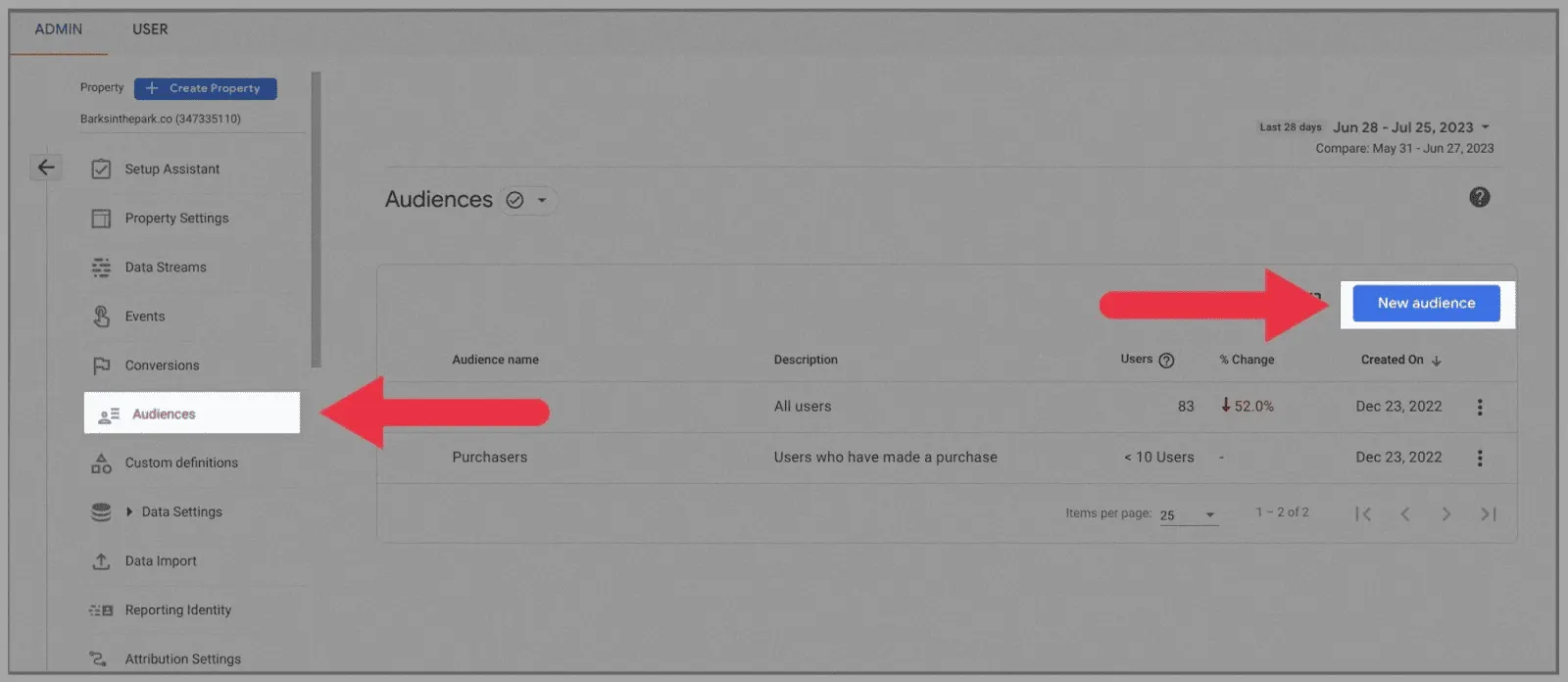
Segments and audiences let you group users based on shared characteristics. This can be useful for building targeted marketing campaigns, or understanding how different groups of users interact with your website.
User properties are attributes that describe a user — location, language, device type, and so on. You can use user properties to build segments and audiences in Google Analytics 4. To set up a user property, go to Admin > User Properties and click “New user property.”
An audience, meanwhile, is a group of users who share specific characteristics. You can use audiences to build targeted marketing campaigns. To set up an audience, go to Audience Builder and click “New audience.”
Things to Watch for When Setting Up Google Analytics 4
Google Analytics 4 is a powerful tool that helps B2B marketing organizations improve website performance and hit their marketing goals.
Here are a few things to watch for during GA4 setup:
- Set up Enhanced Measurement: Enhanced Measurement lets you collect additional data about website visitors without configuring extra tracking code. It’s extremely useful for tracking key events and conversions.
- Use a tag manager: Using a tag manager like Google Tag Manager makes it much easier to manage your GA4 tracking code.
- Set up goals and conversions: Goals and conversions are essential for tracking your website’s success. Set up a goal and conversion for every meaningful action you want website visitors to take.
- To set up a conversion, go to Admin > Conversions and click “New conversion event.”
- Filter internal traffic: Internal traffic is traffic that comes from your own staff and devices. This kind of traffic can skew your data, so it’s important to filter it out. You can do this by going to the Admin tab and clicking Data Filters under Property.
It’s also important to understand the different types of data Google Analytics 4 collects.
Google Analytics 4 collects two main types of data: event data and session data. Event data covers specific actions users take on your website — page views, clicks, conversions, and so on. Session data covers a user’s overall journey on your website — pages visited, total time spent on the site, traffic source, and more.
Google Analytics 4 also offers a variety of reports you can customize to your specific needs. You can build custom reports to track specific metrics or dimensions, or to compare different user segments.
Google Analytics 4 can also integrate with a range of other marketing tools, including Google Ads, Google Marketing Platform, and CRM systems. This lets you use your GA4 data to improve marketing campaigns and customer relationships.
If you need help setting up Google Analytics 4, feel free to reach out anytime. Growth’s experienced team of Google Analytics specialists is here to help.
Related Reading
- The Complete Guide to Performance Marketing — From Definition to Platforms, Attribution, and Overcoming Failure
- What Is Engagement Rate?
- What Is CPC (Cost Per Click)?
- What Is Remarketing?
- CPC (Cost Per Click) Explained
If you’d like to apply this to your own business — you can see how Growth approaches it in our performance marketing service, and if you need a specific diagnosis of your situation, reach out through contact us. We answer based on the one customer who becomes revenue, not the volume of traffic.
Frequently Asked Questions
What’s the easiest way to install GA4?
If you’re on a CMS like WordPress, connecting through a plugin like Google Site Kit in just a few clicks is the simplest option. If you’re managing multiple tags together, adding a GA4 tag to an existing container through Google Tag Manager (GTM) is convenient. And if you’re not using a plugin or GTM, you can also install manually by pasting the tracking code directly into the <head> section of every page.
Why should I change GA4’s data retention period?
When you first create GA4, event data retention is set to 2 months. Per Google’s own documentation, standard properties can choose either 2 or 14 months, so for longer-term trend analysis, we recommend changing it to 14 months under Admin > Property > Data Settings > Data Retention. This setting affects how far back you can go in exploration analysis.
What is Google signals data, and why should I turn it on?
Google signals is session data from users who are signed into their Google Account and have ad personalization turned on, letting you build a more complete picture of user behavior across devices. This enables cross-device reporting, cross-device remarketing, and demographic and interest data. Just keep in mind that a data threshold applies, so some data may not appear in reports if you have too few users.
How do I keep internal staff traffic from skewing my data?
Traffic from your own staff and devices can skew your data, so it’s important to filter it out. In GA4, you can set up an internal traffic filter under Admin > Property > Data Filters. It’s also worth setting up a list of unwanted referrals so domains like social login providers or payment systems don’t get incorrectly logged as referral traffic, which improves your data accuracy.